
Backing up the Documents/iRacing folder to OneDrive consistently causes issues.
Please take the steps in the guide below to manage which folders are backed up to OneDrive (and stop backing up your Documents folder to OneDrive).
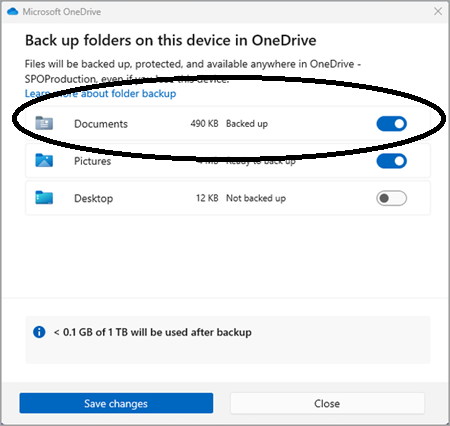
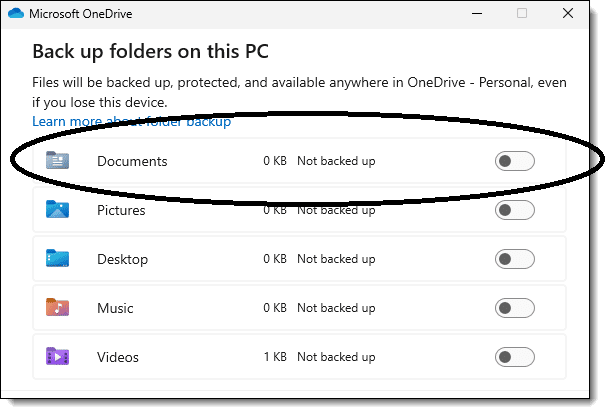
Turn the Documents toggle OFF by clicking the toggle next to Documents, then click OK to stop backing up this folder to OneDrive (see screenshot below).
This shows that it is ON:
It needs to be off like this:
If you are still experiencing issues or the filepath in Settings > About in the UI still shows OneDrive in the name, we'd recommend restoring the Documents folder location to the default location (see steps below).
Restoring the Default My Documents Path:
If the current My Documents path is incorrect or is no longer available, you can use the Restore Default option to restore the default path:
NOTE: This option is not displayed when group policy folder redirection is in effect for this folder.
1. Right-click My Documents (on the desktop), and then click Properties.
2. Click Restore Default.
https://support.microsoft.com/en-us/topic/configuration-of-the-my-documents-folder-dfd9a90d-8f80-18d6-e7cc-f1566fc3b10b
If these steps don't resolve the issue, reach out to iRacing support at support@iRacing.com