

iRacing & Apple Vision Pro
iRacing now supports immersive high-fidelity racing on Apple Vision Pro via NVIDIA CloudXR. While the simulation continues to run on a dedicated Windows PC, the Apple Vision Pro acts as a premium wearable interface for your virtual cockpit.
TABLE OF CONTENTS
- Quick Start and Troubleshooting Guide
- Getting Started: Installation & Connection
- Troubleshooting & Network Configuration
- Streaming Performance & Network Optimization
Quick Start and Troubleshooting Guide
While your Windows PC continues to power the core simulation, the iRacing Connect app for visionOS creates a dedicated bridge between the two devices. This connection allows high-bandwidth video and audio to stream seamlessly from your workstation to the Apple Vision Pro over your local network.
Key features of this system include:
Hybrid Rendering: Graphic processing is performed locally on an NVIDIA RTX GPU. These frames are then encoded and transmitted over a high-speed Wi-Fi connection to the iRacing Connect app on visionOS.
Visual Optimization: To ensure peak performance, the app utilizes foveated streaming, rendering the sharpest content in the driver’s direct line of sight.
Mixed Reality Alignment: Utilizing NVIDIA’s latest spatial tools, the app blends your physical environment with the virtual world, ensuring your physical steering wheel and hands align accurately within the digital cockpit.
Exclusive Immersion: Exclusive to the Apple Vision Pro, iRacing utilizes high-fidelity pass-through technology to blend your physical environment with the virtual cockpit. By intelligently masking the digital interior, the headset allows you to see your actual arms, hands, and steering wheel in real-time, providing an unmatched sense of presence and tactile control.
To learn more about NVIDIA CloudXR use the following link: https://blogs.nvidia.com/blog/nvidia-cloudxr-apple-vision-pro/
Getting Started: Installation & Connection
System Requirements
A Windows PC that meets the “high-end” specifications indicated here: https://www.iracing.com/membership/system-requirements/
NVIDIA graphics card model 4070Ti+ or 5070Ti+, running driver version 580+.
An active subscription to iRacing
Apple Vision Pro headset, OS 26.4 or higher, with iRacing Connect app (a free download from the Apple App Store)
A local network
A Wi-Fi router capable of over 1000Mbps on the 5GHz band (Wi-Fi 6 +)
A 5GHz Wi-Fi network adapter or Gigabit+ Ethernet connection for the PC
The Apple Vision Pro and PC must be on the same local network
We also suggest that you have a flexible and adjustable racing position to best take advantage of the immersive passthrough “your own hands on the wheel” experience. For the best experience your physical seating position will need to approximate the position of the virtual driver in the sim.
Installation
Hardware Preparation: Ensure your Apple Vision Pro is configured and updated according to the manufacturer’s instructions.
Install iRacing Connect: Locate and download the iRacing Connect app from the App Store on your Apple Vision Pro.
Configure PC Display Mode: Launch the iRacing UI on your Windows PC. In the upper-right corner, select CloudXR from the display mode drop-down menu.
Initialize the Simulation: Select your desired session or race within the iRacing UI and click Join to launch the simulator.
Establish the Link: Launch the iRacing Connect app on your Apple Vision Pro and follow the on-screen prompts to pair with your local PC.
Navigation: Once the connection is established, you can interact with the iRacing interface via the desktop mirror window as usual.
Immersion & Calibration Adjustments
Adjusting Transparency: Use the Digital Crown on the Apple Vision Pro to adjust the immersion level, allowing you to blend the virtual cockpit with your physical environment.
HMD Centering (Hand Tracking): If hand tracking is enabled, the headset’s centering is handled automatically during the initial calibration process.
HMD Centering (Manual): If you are not using hand tracking, you can manually center the display by pressing and holding the Digital Crown.
Troubleshooting & Network Configuration
Windows Prompts Upon Release
Note: all customers with Nvidia graphics cards will receive these Windows prompts once the update to Apple Vision Pro is released. If you are using the Apple Vision Pro with iRacing, choose “Allow” for these prompts. If you chose "Cancel", refer to the Troubleshooting steps to allow communication through your Windows Firewall. If you don’t see this message don’t worry. You may have already allowed access prior to setting up the Apple Vision Pro application.
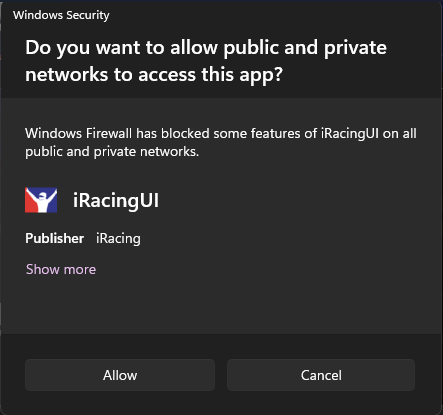
If the Apple Vision Pro is unable to discover or connect to your PC, or iRacing is unable to launch in CloudXR mode, the most common cause is a restriction within the Windows Defender Firewall. Follow these steps to ensure the necessary permissions are granted:
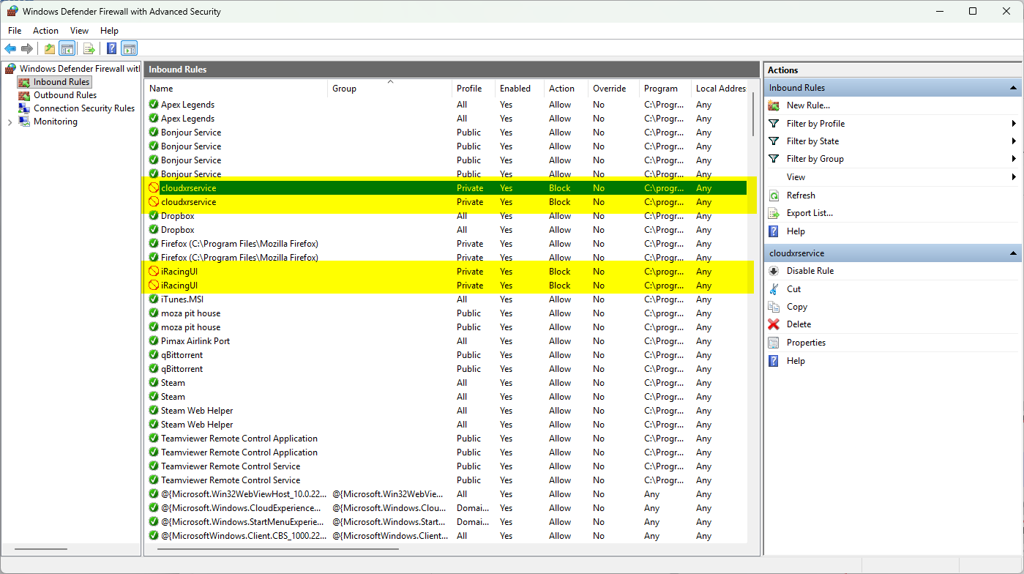
Open Advanced Security: Navigate to Control Panel > System and Security > Windows Defender Firewall and select Advanced settings from the left-hand menu.
Modify Inbound Rules:
Click on Inbound Rules in the left sidebar.
Locate all entries for iRacingUI and cloudxrservice. (Image #1 below)
If these entries do not exist, you will need to manually add New Rules for to Allow the Connections for iRacingUI and Cloudxrservice
The program paths are:
D:\Program Files (x86)\iRacing\ui\Server\CloudXrService.exe
D:\Program Files (x86)\iRacing\ui\iRacingUI.exe
Right-click each entry and select Properties.
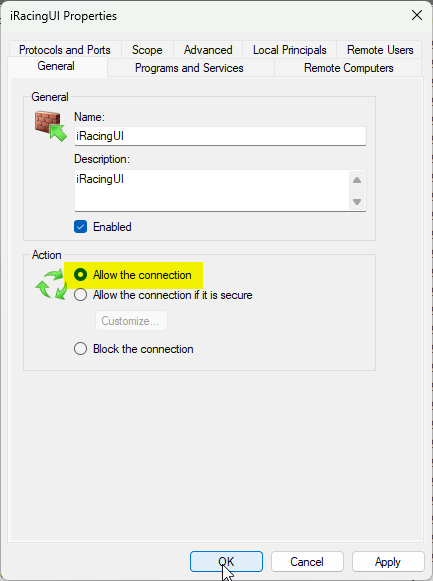
Under the General tab, ensure Allow the connection is selected. Click Apply. (Image #2 below)
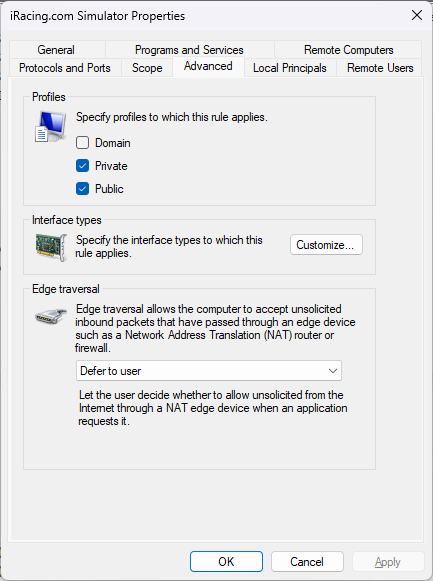
Verify Network Scope: Within the same Properties window, click the Advanced tab and ensure both Private and Public profiles are checked to allow communication across your entire local network. (Image #3 below)
Manually Opening Port 55000
For the iRacing Connect app to communicate successfully with your PC, your local network and Windows Firewall must allow traffic through the following port:
Port 55000 (UDP/TCP): Ensure this port is open and unrestricted in your Windows Firewall settings and any third-party security software.
If the connection is still blocked after adjusting the application rules, you may need to create a manual port exception:
In the Windows Defender Firewall with Advanced Security window, select Inbound Rules and click New Rule... in the right-hand Actions pane.
Select Port and click Next.
Choose TCP (and repeat these steps for UDP afterward), then enter 55000 in the Specific local ports field.
Select Allow the connection and ensure Domain, Private, and Public are all checked.
Name the rule iRacing Connect - CloudXR and click Finish.
Network Profile Configuration
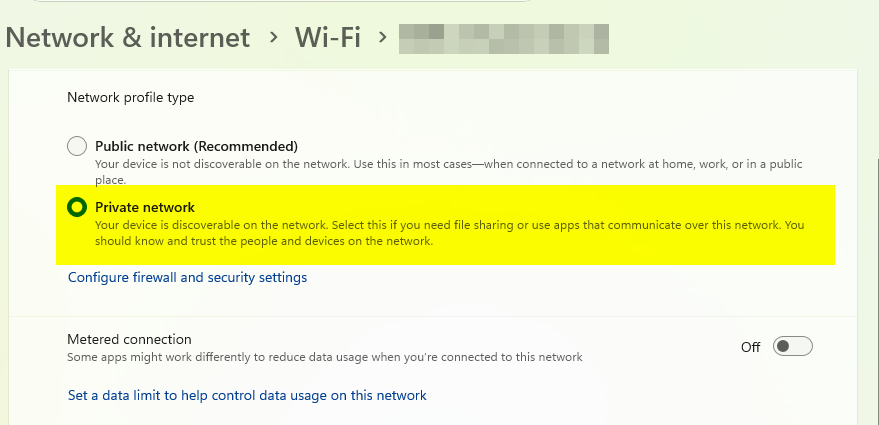
For the Apple Vision Pro to discover your PC, Windows must recognize your Wi-Fi connection as a Private network. If set to "Public," Windows will block the incoming discovery requests from the headset.
Verify Network Status: Open Windows Settings and navigate to Network & internet > Wi-Fi.
Edit Connection Properties: Select your active Wi-Fi network and change the Network profile type from Public to Private.
Confirming Inbound Connectivity
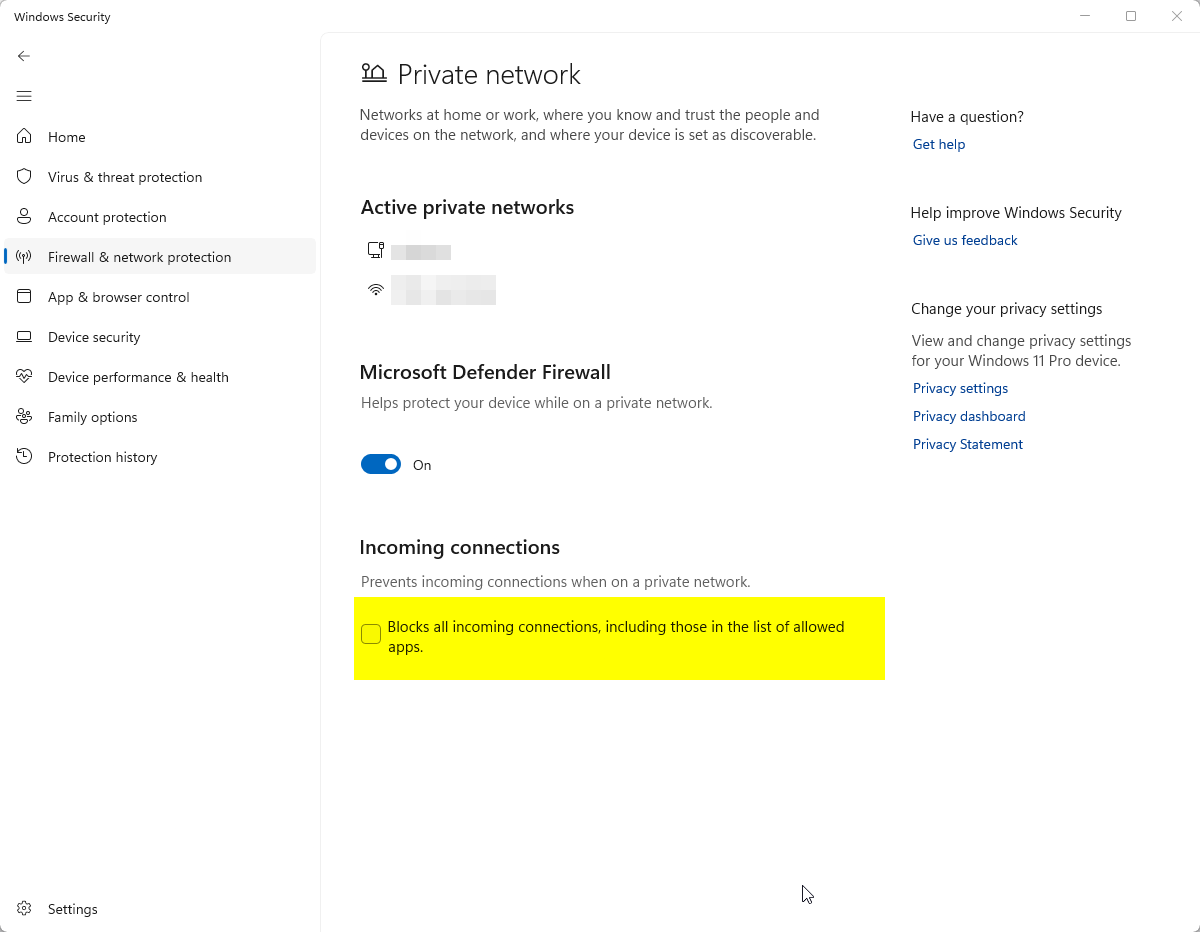
Even with specific app permissions in place, Windows has a global override that can block all communication. You must ensure your firewall is not configured to block all incoming traffic regardless of exceptions.
Navigate to Control Panel > System and Security > Windows Defender Firewall.
In the left-hand menu, select "Change notification settings."
Under the Private network settings section, ensure the following checkbox is unchecked:
“Block all incoming connections, including those in the list of allowed apps.”
Click OK to save your changes.
Headset Calibration/Tracking Issues
During camera calibration, iRacing Connect asks the driver to place their hands on the wheel, then rotate the wheel. The headset’s cameras look for the racer’s hands during this procedure. The procedure may not work well or tracking may be lost if the cameras cannot see the driver’s hands well enough, if there is not good contrast between the wheel and hands, or if the wheel itself has too extreme light and dark contrasting elements. Examples that can cause these conditions:
There is not enough ambient light in the room
The driver is wearing gloves, wristbands, a watch, or other hand/wrist covering.
The wheel has white grip tape (which the camera may confuse with the driver’s hands)
Streaming Performance & Network Optimization
If you experience stutters, visual artifacts (choppiness), or high latency, your local network is likely the bottleneck. High-bitrate VR streaming requires a robust, interference-free connection.
Hardware Requirements
WiFi Standards: Ensure your PC and router support at least WiFi 6 or 6E. While the Apple Vision Pro does not support WiFi 7, utilizing a WiFi 7 router (like the Asus RT-BE86U or TP-Link Archer BE6500) provides a more powerful chipset and better handling of high-bandwidth traffic.
Bandwidth: Your hardware must be capable of maintaining a consistent 1000Mbps throughput over the air.
ISP Hardware Warning: Standard routers provided by Internet Service Providers (ISPs) are generally insufficient for high-end VR streaming. For a smooth experience, we strongly recommend upgrading to a high-performance dedicated gaming router.
Connection Best Practices
Use the 5GHz/6GHz Band: Ensure the Apple Vision Pro is connected to your 5GHz or 6GHz (if using 6E) network. Avoid the 2.4GHz band, as it lacks the necessary speed and is prone to interference.
Wired Workstation: Whenever possible, connect your Windows PC directly to your router via Gigabit Ethernet. Relying on WiFi for both the PC and the headset doubles the load on your wireless spectrum and often leads to latency spikes.
Dedicated VR Networking: If your home network has high traffic (e.g., other users streaming 4K video or gaming), we recommend setting up a dedicated router solely for the connection between your PC and the Apple Vision Pro.
Note on Puppis S1: While popular for some mobile VR setups, we do not recommend the Puppis S1 for iRacing on Apple Vision Pro due to the high bitrates required for this simulation.
Environment & Proximity
Line of Sight: For the best performance, your racing rig should be in the same room as your router. Physical barriers like walls or furniture significantly degrade high-frequency signals.
Graphical Performance
- Foveated rendering: Foveated rendering is not enabled by default in iRacing. To increase performance when using the Apple Vision Pro or any VR headset we recommend using the foveated rendering option. You will find this option in the SIM's graphics Settings > Display > VR > VR Mode