
Installations of iRacing which have not been updated since before October 27, 2022, only supported downloading updates over HTTP (rather than HTTPS) and those endpoints have since been disabled. What this means for members, is that the updater for a client from before that date is no longer capable of updating itself. An uninstall and reinstall of the sim from a current installer will be necessary for the sim to run.
If you have a recent or up-to-date installation and are looking to reinstall iRacing without downloading all tracks and cars again, please see this article How do I Reinstall iRacing without downloading all of my content again? : iRacing .
Uninstalling iRacing
- Right-click on Start, then select Settings.
- In the Settings app, select Apps, then Installed Apps.
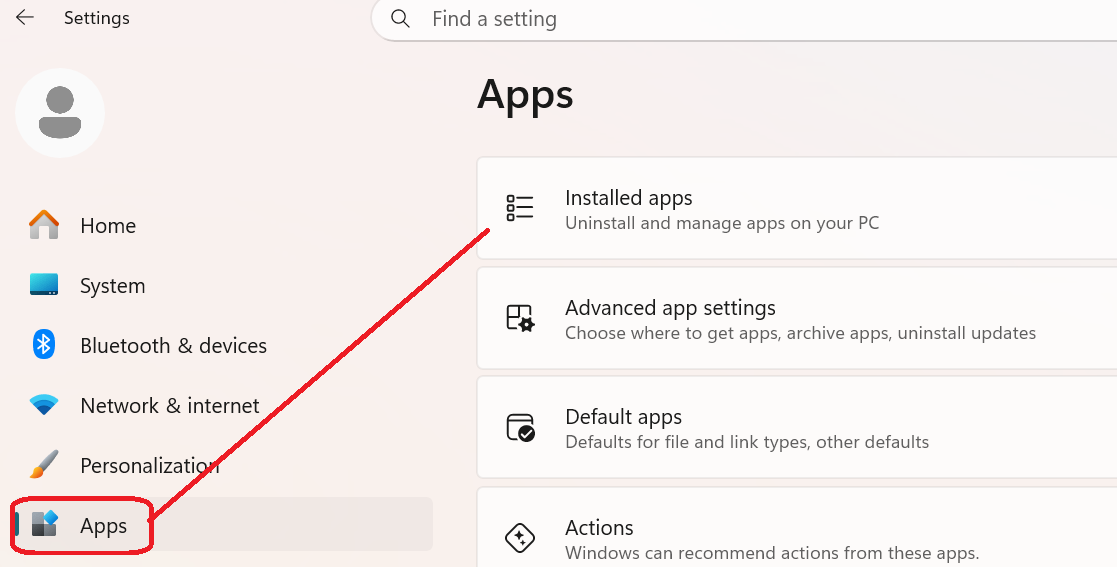
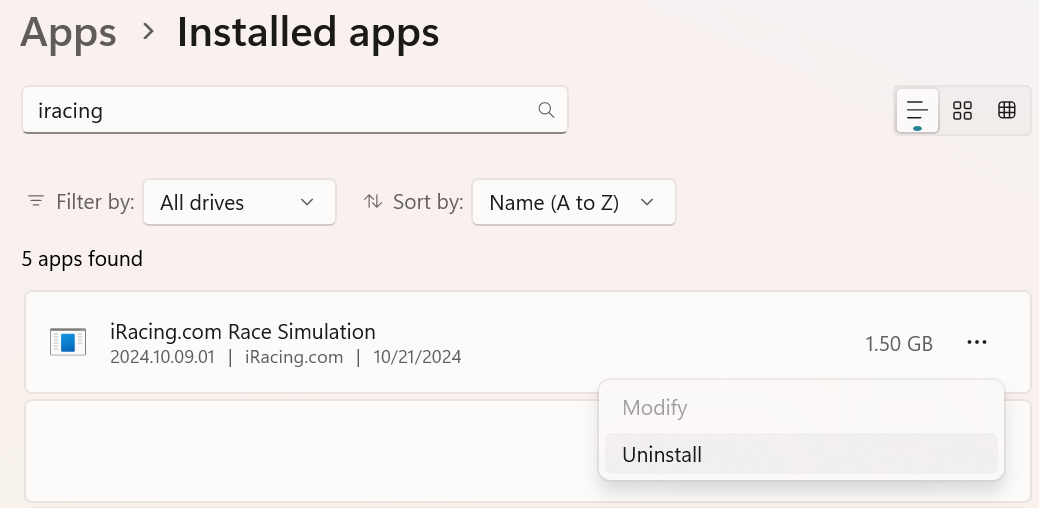
- Type iracing in the search box and the list will be filtered for you.
- Click on the three-dot dot menu ... on the right side and select Uninstall.
Follow the prompts in the uninstaller to remove the installation. At the end, you will see the following notification which is fine.
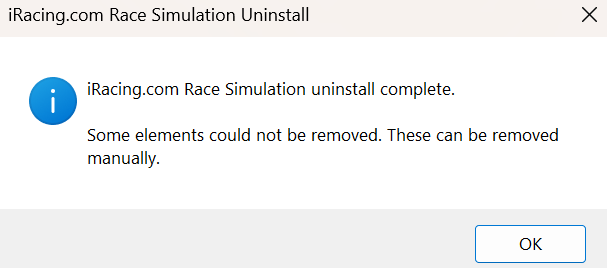
You will need to go to where iRacing was installed and delete those files. By default, this would C:\Program Files (x86)\iRacing. If you are updating from an install this old (pre-2023), there is no reason to keep cars and tracks around as these have all been rebuilt and will need to be fully downloaded again anyway.
Installing iRacing
Go to https://members.iracing.com/membersite/member/instruction/init_qsg.jsp and then click on Download iRacing. Once the download completes, double-click on the file to begin the installation. Follow the prompts on the installation.