
This is heavily borrowed from PingPlotter's own troubleshooting guide at Troubleshooting with PingPlotter.
As of our June 2026 release, iRacing uses anycast routing for the path between users and the race servers. Please see the link below for a brief explanation of what that means. Traditional tools like ping, traceroute, and PingPlotter will not be as helpful for obtaining ping/trace times to our race servers, but you can use iRacingPing.exe to measure round trip times to our server farms on demand.
https://support.iracing.com/en/support/solutions/articles/31000178974-using-anycast-routing/
Using iRacingPing.exe
There’s a utility installed with iRacing that can be used to measure your ping times to our farms on demand, and it has the intelligence to give you data for 4 different return trip times for each farm. You can use any of our farm names (found at the bottom of this document) to get data for a given farm, but here’s an example of using it to get times for our race server farm in Germany.
> iRacingPing.exe de-fra.iracing.com
Pinging via...
IPv4 Unicast (v4-uni) euc1race01-orig.iracing.com 3.123.213.191
IPv4 Anycast (v4-any) euc1race01-any.iracing.com 75.2.101.126
IPv6 Unicast (v6-uni) euc1race01-orig.iracing.com 2a05:d014:ec3:ae01:7f25:76aa:4325:b262
IPv6 Anycast (v6-any) euc1race01-any.iracing.com 2600:9000:a618:5679:9145:967b:57c4:d480
count v4-uni v4-any v6-uni v6-any
1 91.7ms 90.7ms 91.6ms 91.6ms
2 90.8ms 89.1ms 91.2ms 90.1ms
3 90.8ms 89.6ms 90.9ms 90.1ms
4 90.8ms 89.1ms 90.9ms 90.1ms
Ping statistics:
v4-uni Sent = 4, Received = 4, Lost = 0 ( 0.000% loss), Min = 90.8ms, Max= 91.7ms, Avg= 91.0ms, StdDev= 0.390ms
v4-any Sent = 4, Received = 4, Lost = 0 ( 0.000% loss), Min = 89.1ms, Max= 90.7ms, Avg= 89.6ms, StdDev= 0.653ms
v6-uni Sent = 4, Received = 4, Lost = 0 ( 0.000% loss), Min = 90.9ms, Max= 91.6ms, Avg= 91.1ms, StdDev= 0.287ms
v6-any Sent = 4, Received = 4, Lost = 0 ( 0.000% loss), Min = 90.1ms, Max= 91.6ms, Avg= 90.5ms, StdDev= 0.650ms
If you do not have IPv4 or IPv6 connectivity, then you won’t see data for that protocol.
You can run iRacingPing.exe -? to get more options on how you can use this tool.
You can find this tool in your iRacing installation directory, like C:\Program Files (x86)\iRacing\
You can use the hostnames and IP addresses found in the output with PingPlotter if you want to use that tool to measure our anycast targets (instructions below).
Download PingPlotter
Go to https://www.pingplotter.com/download and download PingPlotter for Windows. It is free to use when just running plots so you do not need to pay for a license.
Trace to a Server in the appropriate Server Farm
 Enter a server name in the Target Entry field for the server farm that you wish to test the connection. You do NOT need to worry about choosing the specific server you are connected to when racing, just the race farm. If you are in the sim, you can see which farm you are on as well as the target to use when looking at the RULES tab. In the image below, we are on the US East (Ohio) farm and we can use us-east-oh.iracing.com as the target.
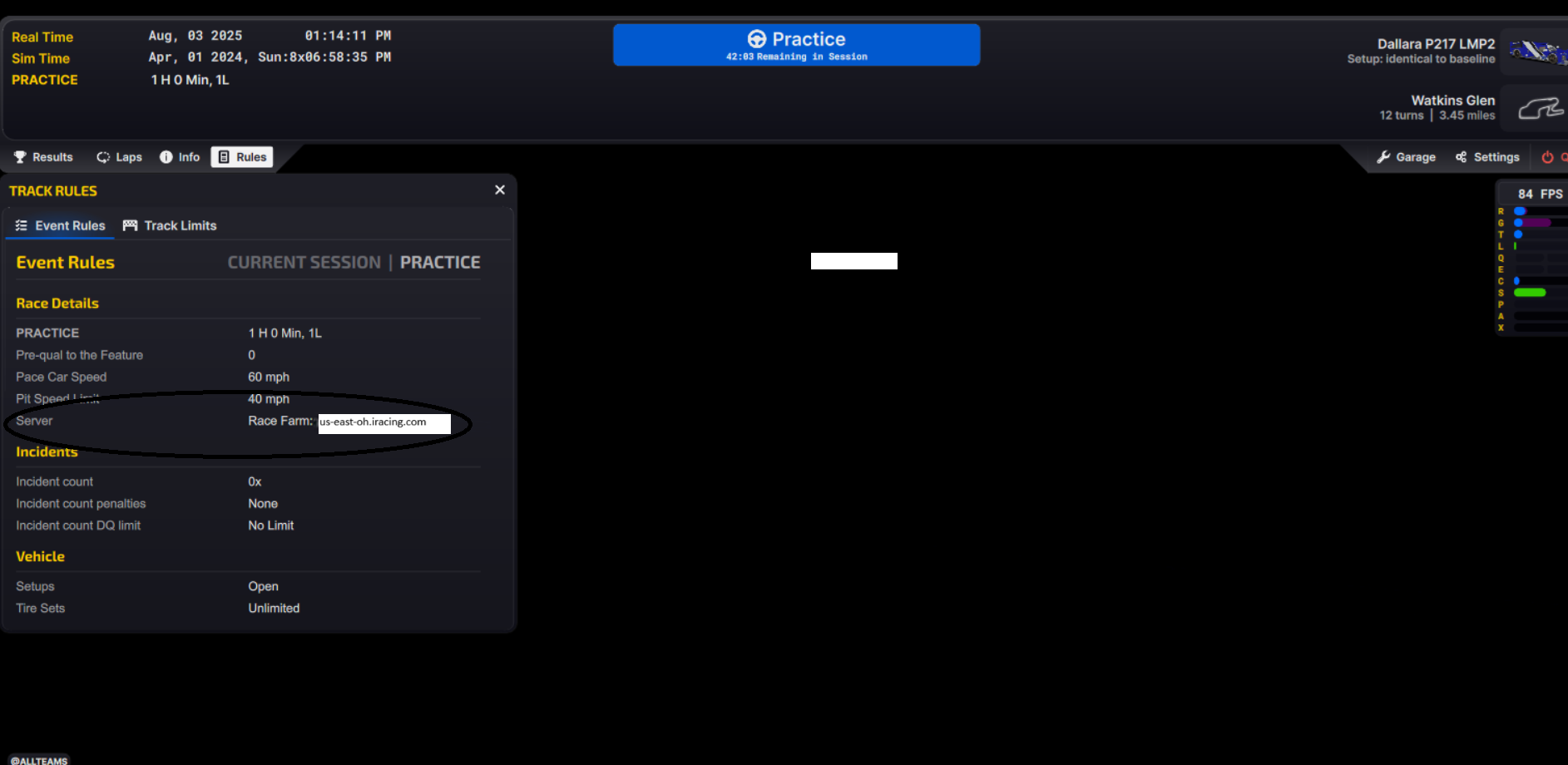
With the target entered, click the green arrow on the right side to begin the trace. Once it is running, you should enter a practice session, if you are not already in one, on the farm you are testing.
Target Servers for Each Farm
This list may not always be up to date. You can always use the above method to find which farm and server to target. Using these names will test the unicast path to our race farms, which is not the route that your traffic will take by default. If you use the iRacingPing.exe tool documented at the top of this page, you will be able to use the hostnames in its output to test the different paths to a race farm.
| Australia | au-syd.iracing.com |
| Brazil | br-sao.iracing.com |
| Germany | de-fra.iracing.com |
| Japan | jp-tok.iracing.com |
| US East (Ohio) | |
| US West | us-west.iracing.com |
Record and Send Results
In most cases, your main focus should be the status of the final hop (the iRacing race server). Think of it this way: If packets are arriving at their destination quickly and safely, does it matter what happens to them along the way? The problems impacting the target are the problems impacting you, and finding where they begin is the ultimate goal.
PingPlotter has several ways to save and share the data you collect. The easiest is to save your session as a PingPlotter sample set file (.pp2). In the file menu, highlight “Export Sample Set” You can choose to export just the data in your focus period or export all the data you’ve collected for the current trace. The sample-set file can then be loaded in PingPlotter for you and others to review.
If pictures are more your thing, you can select “Save Image…” from the file menu to save a screenshot of your current target window graph.
Please include the pp2 file and if possible a screenshot as well when submitting an issue related to connectivity.